


Found yourself locked out of your online banking account? Don’t worry—resetting your password is simple and secure. Whether you’ve forgotten your password or simply want to update it, we’ll walk you through every step using The District Online Banking mobile app.
Step 1: Open The District Online Banking App
Open The District Credit Union mobile banking app on your mobile device. If you haven’t downloaded it yet, it’s available on both the App Store (iOS) and Google Play (Android).
Step 2: Tap on “Forgot Password?” on the Login Screen
On the login screen, under the username and password fields, you’ll find a link labeled “Forgot Password?”. Tap it to begin the password recovery process.
Step 3: Enter Your Logon ID
You’ll be directed to enter your Logon ID associated with your online banking account.

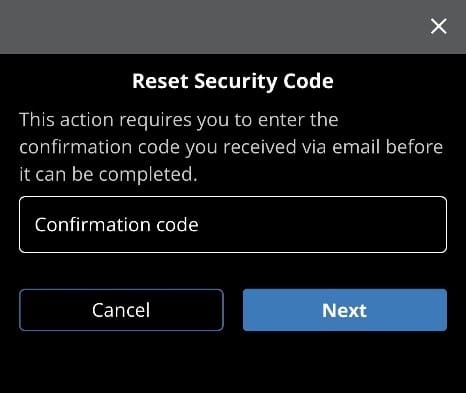
Step 4: Verify Your Identity with the Confirmation Code
Check your inbox for a temporary confirmation code and enter it on the screen provided in the app. Only send one code at a time, after 15 minutes your code will expire.
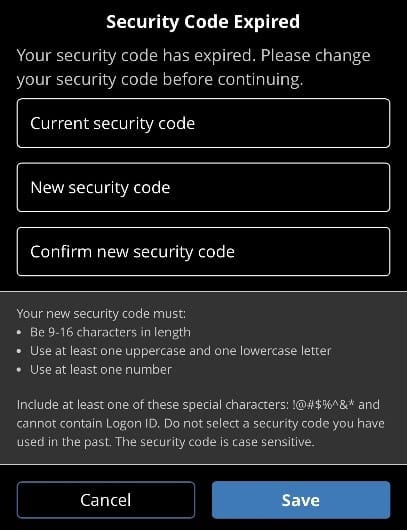
Step 5: Create a New Security Code (Password)
Step 6: Select Security Questions
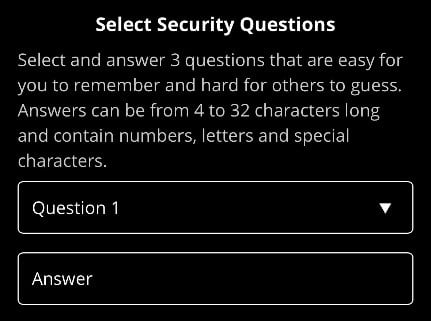
The app will instruct you to select and answer 3 different security questions. These questions ensure stronger protection for your account while giving you a secure recovery option.
Step 7: Log in With Your New Password
After successfully resetting your password, you’ll be redirected to the login screen. Enter your username and your new password to log into your account.
Common Issues & Fixes During Password Reset
Here are a few common troubleshooting tips:
- Didn’t receive a confirmation code? Check your spam folder or wait 5-10 minutes.
- Entered wrong email/username? Retry with the correct info.
- App not responding? Force close and reopen, update, or reinstall.
Contact Member Support at:
📞 303-360-0987
📧 MemberServices@DistrictCreditUnion.com
Customer service is available during business hours and happy to help resolve access issues.